
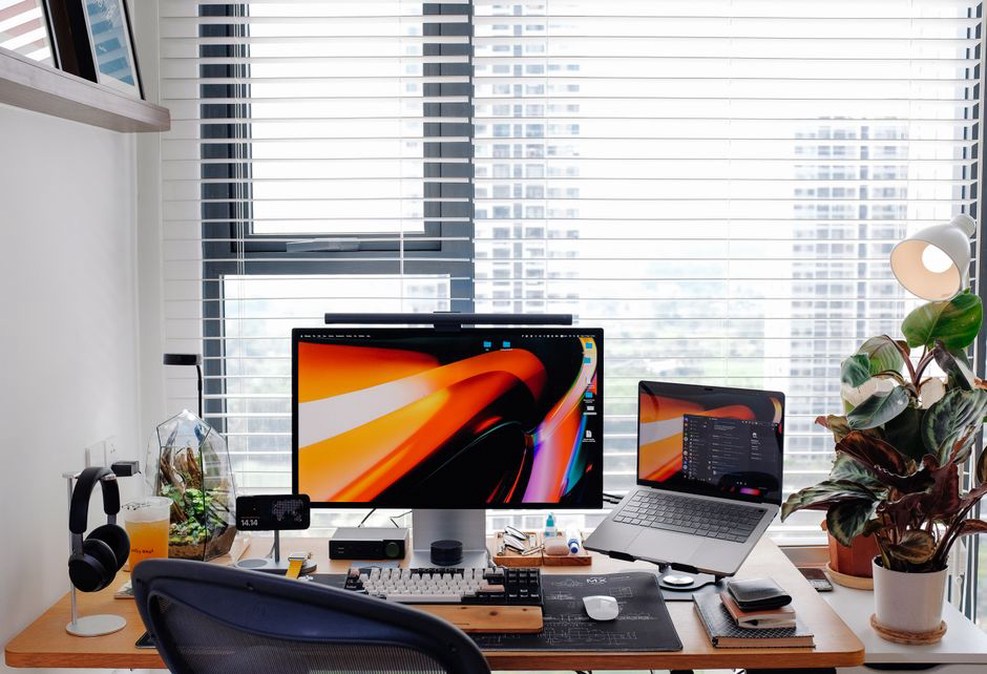
A bright window behind your chair can turn you into a silhouette on a video call, even if the room feels well lit. Turn the desk so daylight reaches your face from the front or side, then check the camera preview. Expressions may become easier to read without a new webcam.
For a project meeting, a clear picture is only part of the setup. People also need to hear decisions, follow drawings and stay connected long enough to resolve questions. It helps to check sound, light, the network and the workspace separately.
Make voices easy to hear first
Speech usually matters more than the picture. A built-in laptop microphone may be fine in a quiet room, but it can pick up keyboard taps, ventilation and conversations nearby. In an open office, a headset microphone close to your mouth often keeps your voice at a more consistent level. It also prevents sound from the meeting from feeding back into the microphone and causing echo.
Before the call, use the meeting app’s test function or record a short sample. Listen for muffled words, distortion and background hum; an input meter alone will not tell you how you sound. If speech is distorted, move the microphone a little farther from your mouth or lower its input level. If it sounds distant, make sure the app is using the headset microphone, not the laptop’s. Noise suppression can reduce steady background sound, though a strong setting may cut off quiet speech.
Choose a room with soft furnishings if you can. Bare walls and hard floors reflect sound and make words less distinct. Closing a door or window may help more than changing a software setting. In a room used regularly for hybrid meetings, assess microphone placement, room acoustics and ventilation noise together: acoustic treatment will do little if the air system masks speech.

Set the camera and light for a readable image
Put the camera near eye level. A stand or a few books can raise a laptop, while an external keyboard and mouse make that position easier to work at. Frame your face so others can read your expressions, with a little space above your head. Moving far back to show the whole room makes that harder.
Broad, indirect light from in front of the desk usually works better than a strong lamp pointed at your face. A shaded lamp can keep the light steadier when daylight changes during a meeting. Watch for a bright window against a dark interior: the camera may expose for the window and leave your face in shadow. If you cannot move, partly close a blind or shift your call position away from the window.
The background need not be plain, but check for distractions and confidential material. Look at what appears behind your chair when you lean or turn. A virtual background can hide a busy space, though it may blur hair, hands or objects held up to the camera. Turn it off briefly if you need to show a physical sample or marked-up plan.
Give the connection a fair chance
A strong Wi-Fi symbol does not guarantee a stable call. Your connection must consistently send your voice and picture as well as receive everyone else’s. If calls repeatedly freeze in one room, move closer to the router, try a wired connection where practical, or ask others on the network to pause large uploads. A single speed test may miss intermittent trouble, so note when and where freezes happen.
If the connection worsens mid-call, prioritize speech over video. Turn off your camera for a while, stop sharing high-motion content you do not need, and close apps transferring files. If audio still breaks up, rejoin on another connection or use a phone dial-in if the service offers one. Tell the group what you are trying rather than speaking repeatedly into gaps in the sound.
Reduce physical strain during long calls
Leaning toward a laptop microphone for an hour can leave your neck and shoulders sore. Sit at a comfortable viewing distance, with your feet supported and shoulders relaxed. Keep notes and drawings close enough to check without repeatedly twisting. A separate display can help with detailed plans, but place the camera near the screen you use to talk to others; otherwise, you may appear to look away throughout the meeting.
Keep headphone volume moderate. If someone sounds too quiet, check the app and device volume, and ask them to check their microphone before turning yours up too far. A few minutes between calls gives you time to stand, look away from the screen and find the documents for the next discussion.
Make shared information legible
For a floor plan, schedule or cost table, sharing your screen is usually clearer than aiming a webcam at paper. Open the right file, zoom in and silence notifications that could reveal unrelated information. Share one application window if the software allows it. Then ask someone to confirm that the text and annotations are readable on their device; a plan that looks sharp on your monitor may be illegible on a phone.
A moving cursor is easy to miss. Name the sheet, room or line item, pause while others find it, and use highlights or markup for precise references. Send detailed drawings ahead so participants can inspect them at full resolution. During the call, state the revision date so everyone knows they are looking at the same version.
Check the meeting setup before people join
- Audio: Confirm the selected microphone and speaker, then test a spoken sentence.
- View: Check face lighting, camera height and what is visible behind the chair.
- Materials: Open the correct files and silence unrelated notifications.
- Access: Confirm that required participants have the invitation and permission to view shared documents.
Use meeting habits that lower confusion
The way a meeting is run matters as much as the equipment. A short agenda separates decisions from items shared for information. In a group call, identify yourself before speaking if some voices may be unfamiliar, and pause after a question to allow for transmission delay. Mute when you are not speaking in a noisy space, but do not rely on the mute button in place of a headset and a quieter room.
Captions can help people who have difficulty hearing, are in a noisy location or are unfamiliar with a technical term. They can misread names and measurements, so verify consequential details aloud or in writing. Before recording, make sure participants know, check organizational policy and consider any personal or confidential information the recording would contain. If the aim is simply to track approvals, a written decision log may be enough.
End by recording each action, who owns it and when it is due. Instead of “revise the entrance,” write: “Architect to issue an entrance plan showing the accessible route by Thursday; client to confirm the preferred option on Friday.” Add that wording to the meeting notes while the drawing and discussion are still fresh.