
A desk may fit against a wall yet be too shallow to keep a monitor at a comfortable viewing distance. Before buying furniture, measure the space you need for the chair, screen, keyboard and any papers you use. Start with your daily tasks and the room available, not the desk dimensions alone.
Choose a location that supports your work
Think through a typical day at the workstation. Do you make calls, read, draw or handle documents as well as work on a screen? A quiet bedroom corner may suit focused computer work but cause problems if calls disturb someone sleeping nearby. In a shared living space, placing the desk away from the main route between doors and seating can reduce interruptions and keep the chair out of the way.
Measure with the chair pulled back, not tucked under the desk. Make sure nearby drawers and doors can open and that you can get up without squeezing past furniture. If the desk will go in an alcove, check that there is room for both the desk and a seated person. An empty alcove often looks more spacious in a photograph than it feels in use.
For a long-term setup, check the position of outlets, windows and heating or cooling equipment. An outlet behind a large cabinet may be awkward to use even if it looks close on a floor plan. Avoid layouts that leave cords crossing a walkway or put a radiator beside you all day.
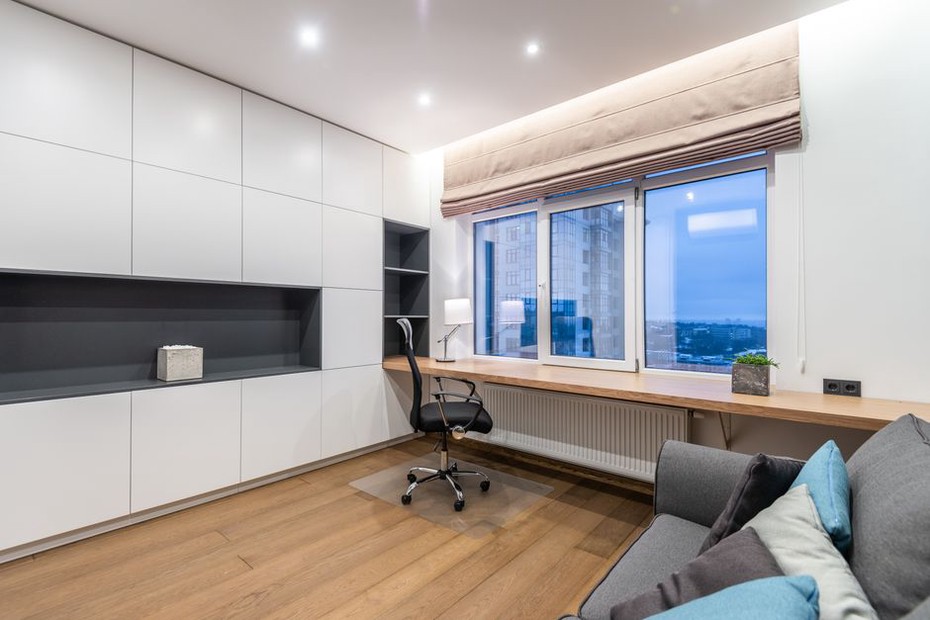
Fit the chair, desk and screen to the person
Start with the chair. Sit back with your feet supported, shoulders relaxed and no pressure behind your knees. Adjust the seat height so you can reach the keyboard without raising your shoulders. If that height leaves your feet dangling, use a stable footrest rather than lowering the chair and forcing your wrists to bend upward.
An adjustable chair helps when several people share the workstation, but the range of adjustment matters more than the number of controls. The seat should let you use the back support without pressing behind your knees. If the armrests keep you too far from the desk, lower or remove them if the chair allows it.
Set the screen where your eyes naturally rest
Put the monitor directly in front of your usual seated position, roughly an arm’s length away to start. If text is hard to read, move the screen closer instead of leaning forward. The top of the display is often comfortable at or slightly below eye level; people who wear bifocals may prefer it lower. Keep the keyboard and mouse close enough that your upper arms can rest near your sides.
For extended laptop use, a separate keyboard and mouse give you more flexibility: raise the laptop screen on a sturdy stand, then set the input devices at a comfortable height. If you regularly work from paper, a document holder near the screen can spare you repeated neck twists toward the desk.
Control daylight, task lighting and glare
Daylight helps, but a screen facing a bright window may be hard to read. A window directly behind you can reflect in the display. Setting the desk perpendicular to the window is often a better starting point. Check it at the hours you normally work; low morning or afternoon sun may cause glare you would not see at midday.
Use adjustable blinds or curtains if the light changes sharply. For reading and paperwork, aim a desk lamp at the work surface rather than your eyes or monitor. Keep some general room lighting on, too: a bright screen in an otherwise dark room can be tiring. On video calls, a soft light in front of you usually makes your face clearer than a bright window behind you.
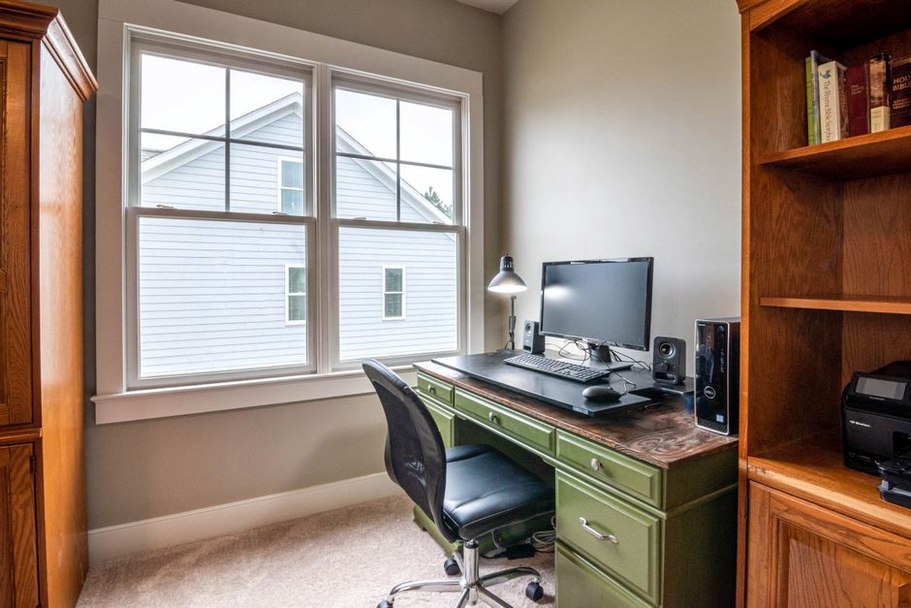
Make the room comfortable beyond the desk
Even well-fitted furniture will not make a workspace pleasant if the room overheats, feels drafty or carries noise from elsewhere in the home. Notice how conditions change over a full workday. Direct sun can heat the area around your desk while the thermostat still reads comfortably; a blind or a different desk position may help more than a fan. Keep ventilation openings clear and use the room’s normal ventilation arrangements rather than sealing gaps around equipment.
Soft furnishings can reduce some sound reflections, but they will not soundproof a room. For calls, a closed door and a position away from shared walls may help more than decorative acoustic panels. If you work in an open-plan area, agree on quiet periods with other occupants where possible. Headphones can limit what you hear, but they will not stop your voice carrying into adjacent rooms.
Plan power and storage around daily use
Count the devices that need power at the same time. A computer, monitor, task lamp and chargers can quickly use up the available outlets. Follow the ratings on outlets and power accessories, and do not chain extension leads. Run cables along a desk leg or wall edge, away from chair wheels and walking routes. A cable tray can lift adapters off the floor, provided they remain accessible and have space to dissipate heat.
Keep daily supplies within easy reach and put occasional materials farther away. A shallow drawer or small shelf may be enough for notebooks and supplies. Tall storage is less useful if it blocks daylight or crowds the chair. For confidential work, choose storage that closes and check what callers can see behind you.
Test the arrangement before fixing it in place
- Mock up the footprint. Mark the desk and chair area on the floor with removable tape, then open nearby doors and drawers.
- Work there for several sessions. Notice when you lean forward, squint at the screen or move away from glare.
- Change one variable at a time. Move the monitor, adjust the chair or redirect the lamp before replacing furniture.
If you work at home for long periods, change position and take brief movement breaks; no single seated posture stays comfortable indefinitely. Before settling on the layout, walk from the chair to the door carrying a bag or laundry basket. That ordinary trip may reveal a clearance problem the desk measurements missed.