
A desk facing a bright window can leave your face dark on camera, even when the room looks well lit to you. Turn the desk so daylight reaches you from the side and check the camera preview before buying a lamp. You may also find yourself leaning toward the screen less often to see how you look. Light is only one part of a comfortable call: sound, furniture, and meeting habits matter too.
Start with the position of the screen
Put the screen roughly at eye level and sit far enough back to fit your head and upper shoulders in the frame. A laptop stand or a stable stack of books can raise the camera; add an external keyboard and mouse so your arms can rest comfortably. Raising the laptop while continuing to type on it may simply shift the strain from your neck to your shoulders.
Notice where your feet, elbows, and back rest. Support your feet on the floor or a footrest, keep your forearms comfortably near desk height, and use the chair back rather than bracing yourself. You do not need to hold one posture for the whole meeting. Changing position between agenda items is more practical than trying to sit perfectly still.
When eye contact matters, move the video window close to the camera. During a presentation or drawing review, look at the work instead. A second screen can help if you regularly share plans or detailed documents, but keep the camera near the screen you use to talk with others.
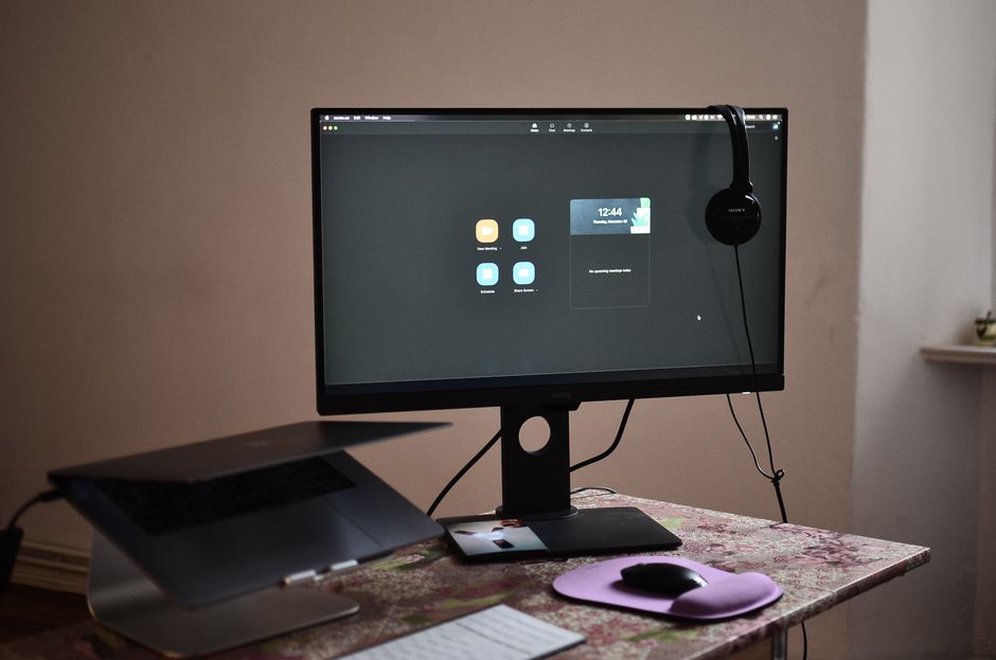
Adjust light before adding equipment
Soft light from in front of you or slightly to one side usually gives a clearer image than a bright window behind you. If daylight changes during the call, use a curtain or blind to stop the camera repeatedly adjusting its exposure. No daylight? Try an existing desk lamp aimed at a pale wall rather than your face. Reflected light can be gentler, provided the lamp is kept clear of anything that could overheat.
Judge the light in the camera preview, not by how the room looks to your eyes. A glossy desk, ceiling light, or uncovered window can cause glare on your glasses or screen. Moving a lamp a short distance or tilting the screen may work better than turning up the brightness. Virtual backgrounds also tend to work better with even light and some space between you and the wall.
Make speech easier to hear
Clear audio often matters more than sharp video. Record a short sample with the microphone you intend to use. Listen for echo, ventilation noise, and words that fade when you turn your head. A headset keeps the microphone at a consistent distance and can reduce feedback from speakers, but it will not make nearby conversations private or remove every background noise.
Hard surfaces reflect sound. In a sparsely furnished room, closing the door or adding ordinary soft furnishings, such as curtains or an upholstered chair, may cut distracting reverberation. You need not redesign the room: moving away from a bare corner can help. If you type while speaking, keep the microphone away from the keyboard.
For teams discussing confidential budgets, patient spaces, or property records, a quiet location also protects privacy. Use headphones if others might overhear remote participants. Before sharing your screen, close unrelated documents and notifications; better audio will not prevent information on the display from being exposed.
Choose a background that works for the meeting
Choose a background that is calm and does not reveal private information. In a quick camera preview, look for readable whiteboards, addresses on packages, plans pinned to the wall, or people passing behind you. A plain wall or tidy shelf is enough. Background blur can help, though it may also hide parts of your hair, hands, or an object you hold up to the camera.
For architects, owners, and contractors, the camera also limits what colleagues can assess. If you show a material sample, hold it near the lens to give a sense of texture and scale, but do not rely on the image for color: camera exposure and screen settings can distort it. For a consequential color decision, use labeled samples, specifications, or an agreed physical review. A webcam view of a drawing is no substitute for a legible shared file.
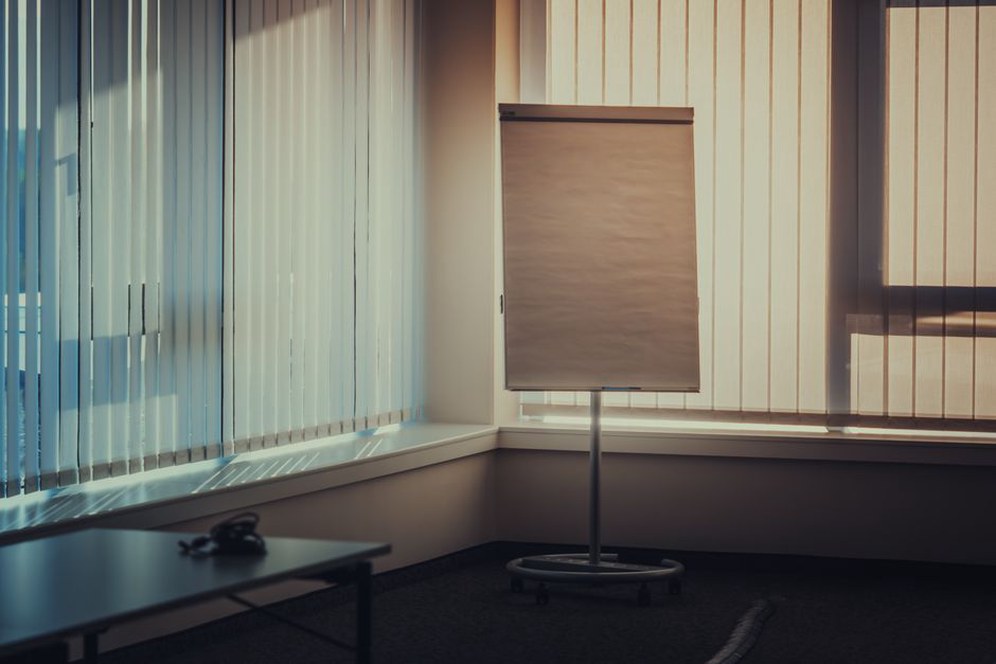
Reduce friction during the call
Prepare the connection and materials
Before an important call, join early enough to check the microphone, speakers, and camera. Meeting applications sometimes switch devices after you unplug a headset. If the connection is unstable, stop unnecessary downloads and, where practical, ask others on the same network to pause bandwidth-heavy activity. Turning off incoming video or your own camera may help on a weak connection, but agree on the change if visual review is essential.
- Open the file you expect to share and check that its text is readable at a normal viewing size.
- Share the relevant window rather than the entire desktop when the meeting software allows it.
- Keep the agenda, decisions to be made, and essential dimensions or reference numbers within reach.
- Have a phone number or another agreed fallback ready if the connection fails.
On design calls, let the shared document carry the detail. Zoom in on the area under discussion and say the sheet, revision, or room number aloud. Participants should not have to hunt across a full-size drawing on a small laptop screen.
Give attention somewhere to rest
Self-view can be distracting. Once you have set the frame, hide your own video tile if the application allows it; your camera can stay on for everyone else. For a long session, schedule a pause so participants can stand, look away from the display, and get water without missing a decision. A five-minute break works best when someone says exactly when the group will resume.
Not every meeting needs continuous camera use. Audio-only participation may suit a routine update or a participant with limited bandwidth, as long as the group does not need to see facial expressions or physical samples. Set expectations at the start so no one has to guess whether switching off video will seem disengaged.
Match the setup to the space
In a shared workplace, layout affects comfort. Place call stations so speakers are not directly behind one another, and leave a route into the room that does not cross the camera view. In an enclosed meeting room, check that ventilation remains adequate with the door shut. A quieter space is not an improvement if it becomes stuffy during a lengthy review. These considerations apply when planning or adapting offices and consultation spaces, not just when arranging a temporary desk.
If a multipurpose room has a position that works, mark where the chair or table goes. A discreet floor mark can help preserve the camera angle without blocking a frequently used route. Before the next call, take thirty seconds in the preview to check your lighting, confirm the selected microphone, and make sure no confidential notes are visible behind you.