
A used laptop can look fine on a seller’s desktop yet have a worn battery, a failing drive or a company lock that blocks setup. Before paying, ask to see it running on battery power and connected to Wi-Fi. If the seller cannot provide a working charger or allow a basic inspection, factor that uncertainty into the price.
Start with the job the laptop must do
Check the requirements of the software you actually use before comparing listings. Email, documents and video calls are less demanding than large drawings, 3D models or rendering. For architectural work, confirm the operating system, memory, graphics and storage requirements of each essential application. Being able to open one drawing is not the same as working comfortably with several drawings, reference files and a video call open at once.
As a starting point, 8 GB of RAM may be enough for light office work; 16 GB gives you more room for multitasking. Large models and demanding creative software may call for 32 GB or more. Check those figures against your applications and file sizes. Look up the exact processor model and generation, too: an older “Core i7” may be less useful than a newer mid-tier chip. If you work in 3D, check for dedicated graphics and confirm that your software supports them.
Find out whether you can upgrade the memory and storage. RAM is soldered in many thin laptops, so assume the installed amount is permanent unless the model specifications say otherwise. Add the cost of any planned upgrade, replacement charger or likely battery replacement before deciding that a cheaper machine is a bargain.
Verify the listing and ownership
Ask for the exact model number, year or generation, processor, RAM, storage capacity, screen size and operating system. A product-family name can cover quite different machines. Compare the listing with the laptop’s system settings, and inspect the serial number on the device. Ask for an explanation if the number is missing or does not match.
Confirm that the seller owns the laptop outright and can remove it from any organization’s device-management system. Former workplace and school machines may have remote controls or setup restrictions that survive a factory reset. The seller should also sign out of personal accounts and disable device-finding or activation features that could block the next owner. If there is a purchase receipt, check that its model details match. Be especially wary if the seller will not demonstrate setup after a reset.
Inspect the case, screen and hinges
Inspect the edges and corners in good light. Scratches may be cosmetic, but bent metal, separated seams, missing screws or an uneven base can suggest a drop or a poor repair. A bulging case, raised keyboard or trackpad that no longer clicks normally may signal a swollen battery. Do not charge or keep using a laptop that shows signs of battery swelling.
Open and close the lid slowly. The hinges should move evenly, without cracking sounds or movement in the surrounding case. With the display off, look for cracks and pressure marks. Then use plain white, black and solid-color screens to check for persistent bright or dark pixels, discoloration and uneven backlighting. Try several brightness levels, not just the highest one.
Test the parts you will touch every day
Bring a USB device you know works and, if practical, headphones. A few minutes of hands-on testing can reveal problems the specification sheet will not:
- Keyboard and trackpad: Type every letter, number and common punctuation mark. Try the modifier keys, backlighting if advertised, scrolling, clicks and gestures.
- Ports: Test charging and the USB ports you expect to use. If video output, a card reader or an audio jack matters to your work, bring compatible equipment to test it.
- Wireless connection: Join a Wi-Fi network and pair a Bluetooth device if you need one. A network icon alone does not show that the connection stays stable.
- Camera, microphone and speakers: Record and play back a short clip or make a test call. Listen for distortion and check that speech comes through clearly.
- Cooling: Run the laptop long enough to hear the fan. Grinding noises, repeated shutdowns or severe slowdowns during ordinary tasks need investigation.
Pay particular attention to USB-C. Identical-looking ports do not necessarily support the same charging or display functions. Check the exact model specifications against your monitor or docking setup, then test those functions if you can.
Check battery health and charging
A battery percentage shows the current charge, not how much capacity the battery has left. If the operating system offers a health figure or report, compare the current full-charge capacity with the original design capacity. A much lower figure points to shorter unplugged use, though the report is an estimate, not a promise of runtime. Ask when the battery was installed or replaced if the seller knows.
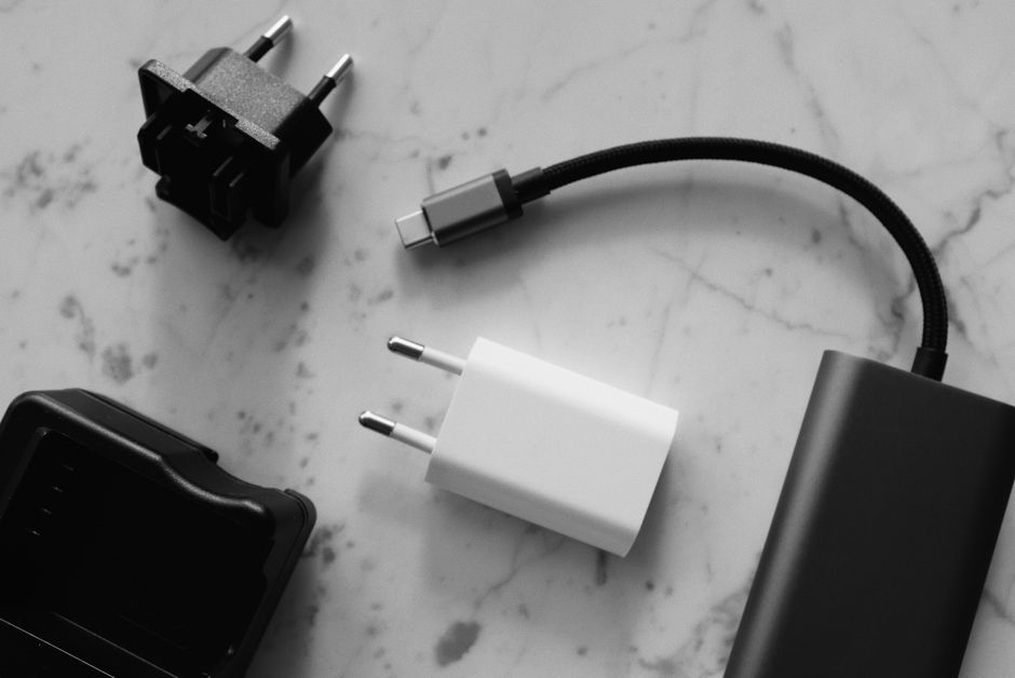
Use the laptop unplugged for part of the inspection. It should stay on, and the charge should not drop unusually fast during light use. Reconnect the charger and confirm that charging starts. Check the cable, plug and port for fraying, damage or a loose fit. The supplied charger also needs the right specifications; an underpowered one may struggle to charge the laptop while you use it.
Look beyond a successful startup
A quick boot tells you the laptop starts, not that its drive is healthy. Compare the reported drive capacity with the listing and check any drive-health information the operating system makes available. Failure warnings, unexplained freezes or repeated errors are reasons to pause. If the seller agrees, open several applications and files, switch between them and restart the machine. Watch for overheating, dropped Wi-Fi connections or an unusually long wait before it becomes usable.
Check that the operating system can still receive the security updates you need. Older hardware may run its installed system acceptably without supporting a current version. If licensed software is included in the price, find out whether the license can be transferred. A preinstalled application or signed-in account does not establish that you can keep using it.
Match the inspection to the way you buy
In person
Choose a place where you can use an outlet and an internet connection, and allow time to check the screen, ports and battery before restarting the laptop. Keep a record of the model, stated specifications, accessories, agreed price and disclosed defects. If a port is faulty or the battery is weak, estimate the repair cost before agreeing to pay.
From a distance
Ask for recent photos of the actual laptop, rather than catalog images. They should show the screen on, keyboard, case edges, charger and system specifications. A short video of startup, restart and the tests you request can help, but it cannot replace an inspection in person. Read the return terms: how long do you have, who pays shipping, and does a fault found on arrival qualify for a refund? Choose a payment method that creates a transaction record and offers the protections you expect under its terms.
When the laptop arrives, compare its serial number, specifications and condition with what you agreed before transferring personal files. Test the battery and every essential port within the return period. If you need it for drawing work, open a representative project file, not just an empty application window.
Price the risk, not just the specification
Compare prices for the same configuration and condition, not simply the same product name. Factor in battery health, screen defects, charger condition, warranty or return rights, and whether the RAM and storage meet your needs without upgrades. Cosmetic wear may justify a lower price; an inadequate memory configuration or failing battery may wipe out the saving.
Before paying, have the seller sign out of accounts and show that the laptop reaches its normal setup screen without asking for a previous owner’s or organization’s credentials. Put the serial number and any agreed defects on the receipt. If you plan to use the laptop at client meetings, finish with a practical check: unplug it, connect to Wi-Fi and join a brief video call with the camera, microphone and speakers on.